
Showing posts sorted by relevance for query dojo. Sort by date Show all posts

Tuesday, August 18, 2015

Tuesday Tech Tip: Class Dojo


I’ve always struggled with classroom management.  In fact, I used to joke that I was really good at getting students excited about learning, and really bad at getting kids to settle back down.  Over the years, I’ve tried everything!  I’ve used table points, classroom money, an OOPS book, sticker charts, writing the word R-E-C-E-S-S on the board and then erasing one letter each time students were misbehaving.  I’ve added extra time for fun activities, and taken that time away.  I’ve created prizes that I thought students would like.  The results were always the same: by Thanksgiving, I would forget to hold students accountable, often giving students extra chances, and students would lose interest in the management system.  By the end of the year, students would have learned all my loopholes and I would periodically turn into Mr. Strict, in a desperate attempt to regain control of my classroom.  


In the twelve years I spent in the classroom, I learned two things: (1) students getting excited about learning is not a classroom management problem; and (2) I needed to find a simple, better way to reward students for their behavior, encouraging students to be critical thinkers and holding them accountable to my high standards, while dissuading rare, inappropriate behavior.  Today’s Tech Tip concerns the latter: ClassDojo.


I have used ClassDojo regularly for the past five years.  In fact, I was one of the original teachers piloting the management system, becoming a Class Dojo Mentor for my school building and the Cherry Creek School District.  It is easy to set up, hold students accountable for behavior, encourage positive behaviors, and communicate what you are doing in the classroom.

So, let’s get started!  I’m a big proponent of finding other resources to help me as a teacher. Luckily, there are a TON of tutorial videos or step-by-step guides in order to help you set up Class Dojo for your own classroom.

Student Introduction to ClassDojo

When introducing any new classroom management system, it is important to establish the WHY and the HOW.  Why am I using ClassDojo?  I always tell students that, as their teacher, I am helping them become the best students possible, both academically and behaviorally.  ClassDojo allows me to help students be successful through various actions.  For example, to be a successful fifth-grader, I want students to actively listen, collaborate with others, think creatively, take risks, persists through learning activities, and work hard.  When I notice students doing any behavior I expect, I can award Dojo Points or Mojo!  Students LOVE receiving Mojo!  All students want to please their teachers and be successful students, so awarding Mojo is a great way to encourage students to behave well.  ClassDojo does a great job of introducing their management system to students.


Parent Communication
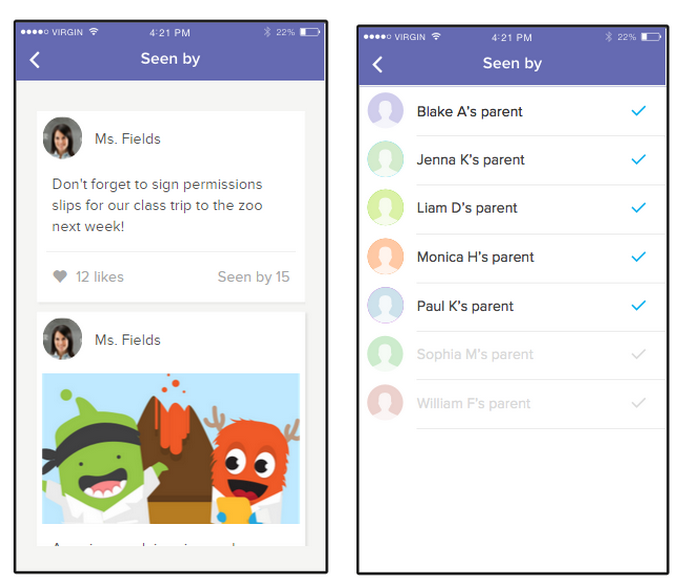
Parent communication is by far my most favorite feature!  Using Class Dojo's messaging app, I can let parents know exactly how their child is behaving all throughout the day.  In fact, it even time-stamps when I give out positive Mojo, so parents can see what time of day I am recognizing positive behavior.  Below, is a video of parent testimonials put out by ClassDojo.  I really feel that the sentiments expressed in the video accurately represent how my own parents felt throughout the school year.  The best part: parents get to hear all about the GOOD stuff, not just the negative emails and phone calls.


Groups
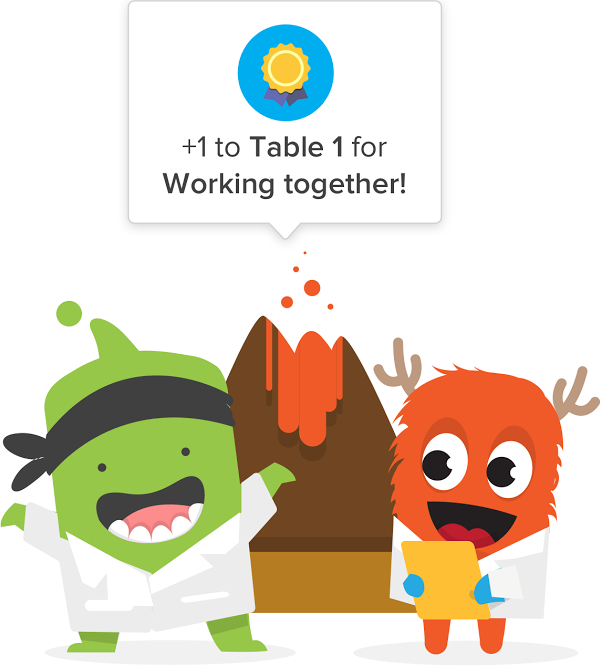
Teachers can create now create groups in ClassDojo.  This is a feature I sorely wanted when I first found ClassDojo.  Now, I can give groups of students points, instead of selecting individual students in order to award them the same Mojo. During the school year, I always had my students in table groups.  I wanted to encourage collaboration to solve real-world problems.  For example, I wanted students to remember that they would be working in teams. As an adult, have you ever worked in a team that didn’t get much done because someone dominated, and someone else didn’t participate at all? That never happened in our classroom thanks to ClassDojo!  Students operated like groups of student engineers: in a smooth, cooperative way. ClassDojo encouraged every student to want their team to be the very best in the class.  As a class, we were able to set guidelines for team behavior. We based these guidelines on behaviors we all wanted to see in other team members. Example Mojo points included: SHARING OF IDEAS, TAKE TURNS TALKING, TAKING WORK SERIOUSLY, and BEING POSITIVE. I was able to improve classroom participation 100%!

How to use Custom Avatars

When I first introduced ClassDojo, students were extremely excited to create their own monster avatar.  ClassDojo offers a ton of great, furry monsters and critters for students to choose from.  In fact, students can even use their own picture as their avatar.  Here is a quick video tutorial from one of my favorite classroom technology Bloggers, Richard Byrne.

How to Add a Behavior

I highly suggest creating behaviors with your students that you want to encourage throughout the year.  I always did this at the beginning of the year, but like any project, we were constantly refining throughout the school year.  We often revisited our behaviors to discuss if they were still of value to the students.  Even though ClassDojo focuses on positive Mojo, there will undoubtedly be a few students who want to test the rules.  I think involving students in creating the NEEDS WORK Dojo points is just as important.  What behaviors are we struggling with this week? Are these based on a single incident or do we need to watch for them throughout the upcoming weeks?  As a teacher, my class focused on different behaviors often, but these were some common ones: NO HOMEWORK, OFF TASK, NOT LISTENING, and UNORGANIZED.  You can also weight both positive and negative Dojo points, having COLLABORATION worth 5 Mojo points and NO HOMEWORK worth -3 Dojo points.

ClassDojo's Newest Feature: Class Story!

ClassDojo is constantly listening to teachers and working to improve their classroom management tool.  When teachers asked for ways to communicate pictures with parents, ClassDojo launched their Messenger App, which allowed teachers to message parents with text and pictures directly from their SMART phone or computer.
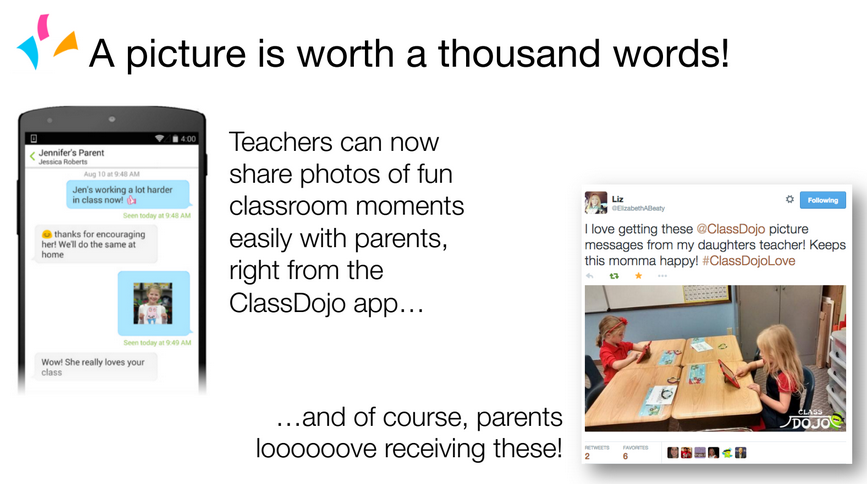
  

Now, I'm very excited to announce that coming soon, ClassDojo will launch their newest feature: Class Story!  As a ClassDojo Mentor, I've been able to play around with this newest feature, and I can promise that it will be even easier for teachers to share classroom updates, funny moments, and announcements with parents.  I loved being able to take a quick picture of a student collaborating with or helping out another student, and send that to their parents along with the student's COLLABORATION Mojo point.  That way, both parents and students had a visual of what it looked like to be successful in my classroom!
At the end of the week, parents are sent a report, indicating how their student behaved.  As a teacher, I could use this data to track various trends, such as when I am taking away points.  Is it right after lunch/recess?  End of the day?  ClassDojo allows me to generate a spreadsheet for analyzing my classroom management.  

Last Thoughts: What about the Secondary Grades & Adult Learners?

I loved using ClassDojo so much, that I helped integrate it throughout our elementary school.  Every grade level, every teacher, every classroom was using ClassDojo to encourage positive behaviors throughout the building.  The one question I always received, however, was what about older learners?  The great thing about ClassDojo is its adaptability for specific teachers and grade levels.  I've had great conversations with secondary teachers who use ClassDojo with their eighth-graders or their juniors/seniors to encourage the behaviors they want to see in their respective classrooms.  High school teachers can create Mojo points for behaviors specific to their content.


In fact, ClassDojo works well for adult learners, too!  For example, I'm currently using ClassDojo with our team of coaches.  It has been a great bonding tool, as well as for our own professional development.  Some of our Mojo include: FINDING A GREAT RESOURCE, TEAMWORK, and BUILDING RELATIONSHIPS.  

If you're a middle or high school teacher, and want to experiment with using ClassDojo, I suggest you subscribe to their YouTube channel.  There are countless videos from secondary teachers discussing how they use ClassDojo in their classrooms.  Don't forget to check out their Teacher Resources page! Need more ideas?  Here is a great set of videos: Ideas for the Classroom.

I used to joke that I always struggled with classroom management, but with ClassDojo, I finally made learning the central focus of my classroom, and not classroom management.


Tuesday, February 16, 2016

The Power of Positive Messaging

As previously posted, our blogs for this month are focusing on the Communication aspect of P21's 4 Cs. This week’s tip is about using Schoology and other tools to help increase positive communication in your classroom. As teachers, we all know the importance of ongoing communication with parents. The problem is that we often get into the habit of only letting parents know when their students are misbehaving or when there is a problem or concern. This leads to regular communication with only a small handful of parents, and those tough phone calls always seem to turn into 20 minute conversations.

Well here enters the Power of Positive Messaging. When teachers take the time to send positive messages to parents, they are building positive relationships with those parents as well as with students. Therefore, behavior issues start to decline, and when issues do come up, the parents are more likely to work with the teacher to help solve the problem.  

So let’s get to easy ways to send those messages. There are many tools out there that can help you, but today the main focus will be on building a positive community within Schoology. Schoology makes it easy for teachers to communicate with both students and parents through their messaging tool. To send a positive message to one of your students or the parents of one of your students, simply go to your Schoology course, click on Members, and click the wheel to the right of the student. There you will see the option to send a message, which will go to the student, or Message Parents, which will send an email to the parent(s) of the student.


While students are not given access to message each other in Schoology, they can message their teachers. This feature could be used for students to send positive messages to you about other students in class, which can provide you even more positive feedback for your messages to parents. 

Posting positive Schoology updates can also help create positive relationships with parents and students. You can post about your entire class, or by using first names if you feel comfortable with that. Maybe give a shout-out to some of your students each day or week for something they accomplished. 


Media Albums in Schoology can be used to show off positive behaviors and classwork as well. Simply use your phone to take and post pictures of kids doing great things, add a quick caption, and those can be seen by all of the members of your course and their parents. To learn more about Schoology's Media Albums, click here. 

Another great tool for positive parent communication is Class Dojo. If you aren't familiar with what Class Dojo can do for you, check out our post from last August about it by clicking here. 
The next time you have to make that tough phone call to a parent, take time to reflect about what the Power of Positive Messaging could do to help you build positive relationships with your students and parents in the future. Carve out a little time in your calendar each day, or even each week to give it a try and see what happens from there. 

Tuesday, September 2, 2014

Tuesday Tech Tip(s): 7 Classroom Management Ideas for the Technology-rich Classroom

Image created by Amber Paynter
Over the past year, Cherry Creek Schools has experienced an increase in classroom technology access, especially with the infusion of Chromebooks, updated student labs, and a stronger wireless network.   Providing us with some exciting possibilities for teaching and learning, expanded access also presents us with some other considerations.  Amber Paynter posted about Digital Citizenship last week, and this week's tech tip is focused on another implication: classroom management.  Here are seven things to think about when teaching in a technology-rich environment.

cc image courtesy of thriveschool.org
1.  Maximize the layout of your room.  If possible, arrange seats/tables/desks so that you can easily move among them and can see multiple screens at once.  Some teachers have different arrangements for different activities (desks/seats facing the periphery during independent work, facing front during direct instruction), others use designated areas in the room for technology activities (like stations or centers), and others use mirrors around the room to provide multiple "eyes" in the room.  Keep carts placed where they won't block access to doors, and keep the cord tripping potential to a minimum.

2.  Assign specific devices to specific students.  One of the best ways to keep our devices in working order is to assign students to specific devices every time they are used.  This not only provides an accountability measure, but it also helps when files might need to be temporarily stored on a device.  (If you won't have consistent machines/devices on a regular basis, have printed copies of your roster handy so that you can track who has what and when.)

3.  Have a student helper (or helpers) for cart management & tech support. Students can be a great help in the classroom.  A student whose responsibilities include unplugging & handing out machines and storing/plugging them back in helps manage the distribution and collection of technology while minimizing chaos in front of the cart.  Using a tech tool with your class?  Some teachers use "Ask 3, then me" to help manage the tech questions during class.  Have your class "tech-sperts" be the go-to for questions about the tool so you are free to work with students on the more important aspects, like the content.

4.  Establish verbal (or other) cues for putting technology "on hold."  It might be flashing the lights in the room or using a specific phrase, but be sure to let your students know how you will communicate when devices need to be "sleeping" or inactive.  Some teachers have the "45 degree rule" for laptops, some call for Technology Time-outs, and others have "face (down) time."  Sharing your cues with parents can also help them manage technology at home -- the more consistent we can be between school and home, the better.  (A side benefit to sleeping machines is battery life -- having nap time for devices will likely increase how long they can be used before charging.)


5.  Use proximity, but also consider using a management tool like gScholar.  Perhaps our best behavior management strategy is physical proximity, so be sure you can easily move around the room (see tip #1). A management tool like gScholar (currently in beta), is a solution for the Chrome browser.  gScholar lets you see which Chrome browser tabs are currently open, send messages to student screens, close open tabs or send URLs to the class or individual students, and capture screen shots (class-wide or individual kids).  Proximity is undoubtedly effective, but digital management tools can also be helpful since it's difficult to be everywhere at once. (For more information, contact your school's technology coordinator/building tech or your feeder's Technology & Learning Coaches.)


cc image courtesy of snapperworth
6.  "Catch" students doing something right and celebrate it.  While you may have to deal with off-task behavior at times in any learning environment, be sure to give public and private props to students who are following directions, doing outstanding work, and being good digital citizens.  You can use badges in Schoology, a free tool like Class Dojo, or whatever you choose to create a positive classroom environment that reinforces what you want to see in your students.
7.  Use COLE 3.0/Schoology to structure activities.  While Schoology can be used for any learning activity (offline or online), it's especially powerful for technology-based activities. Schoology lets you post directions (both in written & audio form), sequence the steps you want students to follow, differentiate lessons, link to specific learning resources, host submitted digital work, give assessments, and provide digital  feedback.   And because its web-based and available for iOS or Android devices via the free app, it can be used flexibly in our mixed device classrooms. 

Most of the tips listed above are good for any learning environment (structured activities, consistent routines and procedures, positive reinforcement, etc.).   Technology may elicit some additional management considerations, but thoughtful approaches to how that looks and works in your classroom will go a long way.