Showing posts with label communication. Show all posts

Monday, August 8, 2016

Tuesday (Monday?) Tech Tip: Outlook Email Awesomeness


Before all of the emails start rolling in for the beginning of the year (as if they already haven’t!), here are a few things to know about the great Microsoft Office 365 Outlook Email migration of 2016.

First and foremost, the benefit of this change is that users have 50GB of space in their mailbox, which is much more than in the regular Outlook Client. Hopefully this will help with that mid-March “Your Mailbox is almost full” message. Now it can hold even more messages!

A few things about the Web App 

  1. The web app is still available from my.cherrycreekschools.org under the “Productivity” tab. You will probably see two tiles. The orange tile that has typically been used will be going away on Aug. 31, and you will then only see the blue tile. Why not be ahead of the game and use that fun new blue tile? (See below) 
  2. Also, one of the newer awesome features is you can make sure that recipients know they're being asked for input or action by including the @ symbol followed by the person's name to the body of an email or calendar item. This will also automatically add them to the To line. Hooray for saving time in the Web App!

New to the table: Add-ins!


Add-ins are a third party plug-in that allows you to add some fun and functionality to your emails. You can add new ones by creating a new email and selecting the hexagon icon at the bottom.

Then, click on "Get more add-ins". A few add-in recommendations:
  1. Giphy: Bring the power of a GIF search engine right into Outlook, and respond to emails with GIFs. Who doesn't love a good GIF?
  2. Emma: This is your personal e-mail-mood-analyzer. Emma is an expert for sentiment analysis and text mining. As your personal assistant Emma will tell you if an email is positive or negative (either as a sender or receiver).
  3. Emojis: Adds an emoji task pane to Outlook using the EmojiOne emoji set. Includes a history of recent emojis used, categories, search, and more.

A few things about personalization in the Web App:

  1. Add your picture to your contact information. To do this, click on the box in the upper right corner. This should have your contact information. Under the circle monogram, click “Change”. This will allow you to add your photo and will subsequently show up for others next to your name when you send them an email. 
  2. Choose your theme! This isn’t a new feature, but it’s still awesome. To do this, click on the settings gear wheel on the top right. Scroll down until you see “Theme”. Click on the image and then choose one of the other options you see there. (Personal recommendation: Super Sparkle Happy) 

The Outlook Web App’s classy new makeover really is the highlight of the Microsoft Office 365 migration. If you are using the desktop version, make sure you are using Windows 7. For assistance with upgrading the operating system, please submit a Mojo ticket to the Help Desk.

And speaking of Mojo and the Help desk, if you are having any issues at all with your email (Web App or Desktop version), please contact the Help Desk(54357) or send an email to mojo@helpdesk.org. The information released by the Help Desk regarding the new Microsoft Outlook can be found HERE, or in the Backyard.

Overall, the Microsoft Office 365 Outlook upgrade is pretty awesome. Let us know in the comments below what some of your new favorite features and/or add-ins are!


Tuesday, February 23, 2016

Voices from the Classroom: Movenote and Student-Led Conferences


The Office of Instructional Technology has the pleasure of working daily with extraordinary teachers throughout the Cherry Creek School District.  "Voices from the Classroom" is one way we highlight innovative teaching and learning from the teachers themselves, in their own words.  
Our guest blogger today is Franzi Kuster from Antelope Ridge Elementary.  Franzi has been teaching 5th grade for 5 years and taught 4th grade for 1 year at Antelope Ridge.  


Movenote and Student-Led Conferences

In my classroom, Spring is the time for student-led conferences, but I wanted to give my students a voice during Fall conferences as well. So, I decided to use MoveNote to give my students that voice while parents are sitting with me discussing their child’s work.
After welcoming parents to their child’s conference, I would let them know that I had a quick video of their child to show them so that they could share some of their thoughts about the learning they had been doing so far this year. Parents were very impressed with the idea of using this type of technology tool and being able to see their child discuss their own learning. As a class, we had been working on growth mindset and progress monitoring, so students really were able to verbalize their understanding of their own learning.
To create these videos, we used MoveNote, a screencasting tool that lets you record, via your webcam, a video of yourself talking about a presentation that syncs to the slides. You can upload documents from Google Drive into a MoveNote presentation or you can use a screenshot or scanned documents. I had students pick one or two work samples to upload into the MoveNote slideshow. Since these work samples weren’t in Google Drive, they had to take a picture of their work sample using the Chromebook webcam. They saved the image and uploaded it into Google Drive as a .pdf or .jpg file. Once students had their images saved, I had them create a script to use as they added their voice/video recording to the slide show within MoveNote. I gave them bullet points that needed to be addressed in their script, and the MoveNote needed to be less than a minute long. In MoveNote, videos can be recorded until a "finished" product is created.
As students were creating their MoveNotes, I showed a few technologically strong students how to embed their MoveNote into their Schoology Portfolio. This way, I had some student helpers to work with the rest of the class along with me. After all MoveNotes were embedded into their Schoology Portfolios, I showed the whole class how make their Portfolios public and embed their MoveNotes into a Schoology assignment. This allowed me to have easy access to their Portfolios and MoveNotes during the actual conference.
Even for me, it was really interesting to see what items students selected to share in their MoveNote. This gave me some more insight into what was important to them and their metacognition.

A special thank you to Franzi for being willing to share the great things she is doing with her students in her classroom.  For more information about Movenote and the possibilities it creates please read the other posts on our blog which have featured Movenote here.

Tuesday, February 16, 2016

The Power of Positive Messaging

As previously posted, our blogs for this month are focusing on the Communication aspect of P21's 4 Cs. This week’s tip is about using Schoology and other tools to help increase positive communication in your classroom. As teachers, we all know the importance of ongoing communication with parents. The problem is that we often get into the habit of only letting parents know when their students are misbehaving or when there is a problem or concern. This leads to regular communication with only a small handful of parents, and those tough phone calls always seem to turn into 20 minute conversations.

Well here enters the Power of Positive Messaging. When teachers take the time to send positive messages to parents, they are building positive relationships with those parents as well as with students. Therefore, behavior issues start to decline, and when issues do come up, the parents are more likely to work with the teacher to help solve the problem.  

So let’s get to easy ways to send those messages. There are many tools out there that can help you, but today the main focus will be on building a positive community within Schoology. Schoology makes it easy for teachers to communicate with both students and parents through their messaging tool. To send a positive message to one of your students or the parents of one of your students, simply go to your Schoology course, click on Members, and click the wheel to the right of the student. There you will see the option to send a message, which will go to the student, or Message Parents, which will send an email to the parent(s) of the student.


While students are not given access to message each other in Schoology, they can message their teachers. This feature could be used for students to send positive messages to you about other students in class, which can provide you even more positive feedback for your messages to parents. 

Posting positive Schoology updates can also help create positive relationships with parents and students. You can post about your entire class, or by using first names if you feel comfortable with that. Maybe give a shout-out to some of your students each day or week for something they accomplished. 


Media Albums in Schoology can be used to show off positive behaviors and classwork as well. Simply use your phone to take and post pictures of kids doing great things, add a quick caption, and those can be seen by all of the members of your course and their parents. To learn more about Schoology's Media Albums, click here

Another great tool for positive parent communication is Class Dojo. If you aren't familiar with what Class Dojo can do for you, check out our post from last August about it by clicking here
The next time you have to make that tough phone call to a parent, take time to reflect about what the Power of Positive Messaging could do to help you build positive relationships with your students and parents in the future. Carve out a little time in your calendar each day, or even each week to give it a try and see what happens from there. 

Tuesday, February 9, 2016

Tuesday Tech Tip: Using Backchannel Chat in the Classroom

As posted last week, we're focusing on the Communication aspect of P21's 4 Cs during the month of February. Communication skills, vital for all students, can encompass myriad approaches and tools, but this week's tech tip is about using Backchannel Chat as a way to help students gain "an understanding of the protocols and norms of various digital tools. . .and a developed awareness of how to use technology safely and responsibly" (Wilkey Oh).

If you're not sure what exactly a backchannel is, it is "a digital conversation that runs concurrently with a face-to-face activity" (Holland, 2014). It provides a place to capture thinking, share ideas and resources, and communicate with others without interrupting the flow of an activity.  This can be a way for students to take notes collaboratively, ask questions to each other, and make meaning for themselves.

Backchannels might happen using something like Twitter or Today'sMeet (you'll see this happen at conferences), but when working with students, it's sometimes a good idea to have that happen in safe space that isn't public or publicly available.  That's where something like the Backchannel Chat app in Schoology comes in.

Backchannel Chat is a free app that teachers can add to any Group or Course in Schoology where they are an admin.  This opens a "room" that only members of your class or group can access (although a teacher can get an external join code to invite a person from outside of the class to participate).  Backchannel Chat also has paid versions that allow for more flexibility in features (file uploading, private messaging between teacher & student, and unlimited "rooms").

Unlike a Discussion Board, the chat happens in real time with no need to refresh. The chat can include live polling and anonymous posting (but the teacher can see names).  Chat transcripts are available after the chat, if needed, and you can use embed code to bring in external media for rich discussions.  And because the chat is moderated by a teacher, it provides both a way to assess and hold students accountable for content posted.

Silvia Tolisano's blog had this guide on using a backchannel with students:
Need more ideas?  Check out these resources:


As we look for more ways to help kids build digital skills in the 4 Cs, backchannels can be a great option to helping kids learn the power of collaborative conversations.

References
Oh, Erin Wilkey. "Communication in Practice – A P21 Member Perspective from Common Sense Media - P21." Communication in Practice – A P21 Member Perspective from Common Sense Media - P21. Partnership of 21st Century Skills. Web. 08 Feb. 2016. 

Holland, Beth. "The Backchannel: Giving Every Student a Voice in the Blended Mobile Classroom." 2014. Web. 08 Feb. 2016.

Tuesday, February 2, 2016

Tuesday Tech Tip: The 4C's...Communication

Have you heard of the 4C's? If we're talking to Tom Shane he would say color, cut, clarity, and carat weight. Alas, even though diamonds are a girl's best friend our topic is not diamonds, it's technology and learning. The 4C's are learning and innovation skills brought to you by P21, the Partnership for 21st Century Learning.
The 4Cs are:


But wait, let's take a step back. What is P21? They are an organization supporting learning by building partnerships in education, business, community and government leaders. Their mission is: 
to serve as catalyst for 21st century learning to build collaborative partnerships among education, business, community and government leaders so that all learners acquire the knowledge and skills they need to thrive in a world where change is constant and learning never stops.


Over the next 4 months we will be devoting our posts to the 4C's.  
This month we will focus on Communication. In March we will dive into Critical Thinking. April will be devoted to Creativity. And in May we will take a look at Collaboration.  

Our friends from Common Sense Education have created this introduction to the 4C's. Take a look.


Thought provoking? It is indeed...

Our students need to be able to go beyond and we need to embrace the 4C's with them. We must continue to think about how we can weave these skills in the classroom and into our own learning.

P21 and FableVision partnered to create this animated film called Above&Beyond. It's a story about what's possible when communication, collaboration, critical thinking and creativity take center stage and transform learning opportunities for all.


Your challenge...how will you communicate about the 4C's?

Yes, diamonds are forever...but so are sound super skills that will last an eternity!  


Thursday, December 3, 2015

Google Gifts: FormMule Add-on for Google Sheets

During the weekdays of December, we're sharing one tool per day.  We're calling it our Google Gifts series.  Some of these come directly from Google, and others are tools that enhance Google Apps or Chrome.  Today, we're sharing the gift of FormMule, an email merge add-on for Google sheets.  

FormMule is an add-on (see Google's help page if you're not sure what an add-on is).  The magic of FormMule is that it can automatically send an email to anyone who submits a Google form -- with a personalized message that includes information that they submitted.

Want to see it in action?  Submit a response to this form and you'll receive an email response!

Why would I use it?  What does it do?

As an instructional tool or for professional learning, you can send a personalized email based on form responses.  As a teacher, it can be a powerful communication tool (ISTE-T.3c) for use with students, peers and/or the parent community.

Here are some ideas for using FormMule with Google Forms:
  • Confirmation emails:  email a record of what the person submitted (dates, times, location, etc.).  This is helpful if you'd like the person to have verification of their responses.
  • Observations: Using a Google form to do walk-throughs or observations?  You could automatically send an email to the person you were observing with information from your visit.
  • Goal sheets:  If students or teachers are submitting their own learning goals, email them a personalized response that includes the goal they've identified.  
  • Digital Mad Libs: Have students enter parts of speech on a form and then email them their own mad lib!
  • Personalized welcome emails: If you are hosting an event or a workshop and collecting registrations via Google form, send a personalized welcome to your participants, along with any additional information that you'd like them to have.  This would also work well for student introductions at the beginning of the year.
Here's how to set it up:


After you've set it up, it will send emails based on your settings (automatically upon submit, manually, or based on a time frame).  You'll notice that it creates a new column for you in your spreadsheet, which verifies that an email was sent (along with a timestamp).  The email will come from whatever Google account set up FormMule, but you can choose a different "reply to" address in the email template.

Where can I learn more?
The New Visions Cloud Lab website has information on this add-on (along with their other great add-ons for Google Apps).  In fact, another one worth checking out is Form Limiter!  There is also a good video tutorial on how to set FormMule up, which you can find here:  https://youtu.be/KhxmvoBUC68.

Tuesday, May 5, 2015

Tuesday Tech Tip: Summer Learning Opportunities

If you are searching for opportunities to brush up on your technology integration skills and learn about new ways to be innovative with technology, here are some conferences and classes to think about attending/taking over the summer...

CCSD SLA - (Cherry Creek's Summer Learning Academy) June 8-12, ISF (Instructional Support Facility) and Eaglecrest High School
This is a conference with sessions taught by Cherry Creek teachers, coaches, and leaders. Sessions focus on Standards Implementation, Excellence and Equity, Instructional Technology, and Planning for Instruction. On Wednesday, June 10th, SLA will host a featured speaker, Mr. Rick Wormeli.  

InnEdCO - (Innovative Education Colorado)- June 23-25, Keystone, CO

InnEdCO, previously known as TIE (Technology in Education), is a conference geared toward learning about current and emerging technology and how to apply this technology to your classroom or school. This year the conference is moving to Keystone from its long-standing location at Copper Mountain. InnEdCO features great keynote and guest speakers, over 150 sessions (some taught by Cherry Creek teachers and Technology and Learning Coaches), and valuable opportunities for networking with innovative teachers throughout the state. Here’s a recap of last year’s conference:


BLC- Building Learning Communities- July 15-17, Boston, MA If you have ever heard Alan November speak, or have read one of his books, you know why this conference is a recommended one. There will be multiple, excellent keynotes including Jennie Magiera and Dylan William, and Alan November will serve as the host of the conference. This conference will focus on creating and enhancing relationships for "more meaningful teaching and learning enhanced by technology."

Schoology NEXT- July 20-22, Chicago, IL

If you are using Schoology or if you are interested in using Schoology, this is a fantastic conference! Last year the keynotes included Alan November and Jenny Maguira, and this year is sure to include inspiring, motivating keynotes as well. One of the highlights of the conference is learning about upcoming additions and improvements to Schoology before anyone else. In addition to learning about Schoology and what it can do for you, you can improve your knowledge in the areas of Leadership, BYOD and Mobile Learning, Integrating Technology and Content, and Hot Topics in Education. Click the link provided to hear what some attendees/keynotes had to say about the conference last year:

ISTE- (International Society for Technology in Education)- June 28-July 1, Philadelphia, PA
This is a conference that pulls in educators and educational leaders from around the world. Expect engaging sessions, fantastic keynotes including NBC's Soledad O'Brien, and countless vendors showcasing their newest, most exciting hardware, software, and apps. The video below explains what you can expect to learn at ISTE 2015.


eNet Learning Online Courses
There are many online courses being offered this spring and summer through eNet Learning Online. These courses can be taken for graduate credit, but every participant will receive CEU credits. Some of the courses offered include Designing Blended Learning, Curate, Collaborate, and Create: A Wealth of Resources, and Creativity in the Mobile Classroom. Click the link above to learn more about the courses offered. 

Dominican University Online
Are you switching grade levels or content areas next year? Do you want to integrate more technology with your curriculum next year but have trouble finding the time to plan and do your research? If what you need is time, and you want to earn credit for it, then check out the Dominican University Online course, Innovative Curriculum Design: Authentic Planning for the 2015-16 School Year. Through this course, you can earn up to 6 credits this summer doing what you already do, planning to become a more effective teacher.

Hopefully you have found something here to pique your interest and save yourself from boredom during the summer months. Keeping up with your learning over the summer can help you feel relaxed, prepared, and excited when the school year starts up again.

Wednesday, January 14, 2015

Cherry Creek Bright Spot: MinecraftEdu in the Classroom

Should students be allowed to play video games at school? Absolutely- if they are playing Minecraft in Joel Solomon's technology classes at Village East Elementary or with the Minecraft Club at Thunder Ridge Middle School with Cary Joice and Justin Cantrell.  

These educators have leveraged student interest in gaming and use MinecraftEdu as a way to use to reinforce the teaching of standards. They focus not only on 21st Century Skills like collaboration, communication, and digital citizenship, but also on standards for core subject areas such as math, science, social studies and language arts. Check out the video below to learn more about Minecraft and using MinecraftEdu in the classroom.


For more information about using MinecraftEdu with your students, contact Joel Solomon at jsolomon2@cherrycreekschools.org or visit minecraftedu.com

Friday, December 12, 2014

The Twelve Tools of December: Screencastify

During the weekdays of December, we're sharing one tool per day as part of our Twelve Tools of December series.  Some of these tools are designed to be used instructionally, some can help you be more productive, and some are just fun.

Today, we're sharing about Screencastify.  


What is it?
Screencastify is an extension in Chrome that allows you to create screen video recordings. With Screencastify, you can create and share video tutorials of your screen or create presentations. As long as you have the Chrome browser, you have the ability to create screencasts using Screencastify. There is no cost to use Screencastify Lite, and you are able to record up to 10 minutes of video.

Why would I use it?  What does it do?
Screencasts are video recordings of your computer screen that have an audio recording in them. They can be very useful for showing someone how to do something on the computer, as in a tutorial or presentation. The viewer can see what to do and where to click on the screen, and hear audio of what’s being said while you click around. It’s a great way for teachers to show parents, students or colleagues how to do something online. It can also be a great way for students to describe and share their thinking while they’re working online. You even have the option to embed a video of yourself in the bottom of the video that you record. 

Screencastify doesn’t collect personal information, and at this time doesn’t have anything specific in their Privacy Policy that addresses under 13.

Are there similar tools?
Snagit is another tool that you can use for screencasting. It is a Chrome web app and an extension in Chrome. It allows you to take screenshots (images) of your screen, or screencasts (video). If you purchase the paid version of Snagit, you can use it on Mac and PC platforms in addition to the Chrome browser. Check out tutorials for Snagit and their privacy policies for students under 13. 

Kathy Schrock also has a great site dedicated to Screencasting in the Classroom. You can check out screencasting tools for different devices, as well as classroom samples.

Where can I learn more?
Here's one screencast tutorial found from a site that compares Screencastify and Snagit.

Tuesday, August 19, 2014

Tuesday Tech Tip: Parent Communication in Schoology

talking13.png
com·mu·ni·ca·tion
kəˌmyo͞onəˈkāSHən/
noun: communication

the imparting or exchanging of information or news."direct communication between the two countries will produce greater understanding"


Communication is essential.  Lack of communication can lead to disaster.  Organizing communications can be frustrating.  Did you know Schoology has built in tools to help with this task?  Specifically, we are talking about communicating with parents.  Among the advantages of using Schoology for a communication vehicle is the fact that you do not have to worry about building emails lists. (Silent cheer, right?) Parents are connected to their students’ courses through online forms.  


To start with, we suggest that you make certain that parents know how to log in to their parent account which is different than logging in as their student.  


Below is some verbiage that you may want to use for a letter to your parents:
This year we will be using Schoology for students as well communicating with you.  Please make certain that you can login to Schoology by doing the following:


  • Log on to http://my.cherrycreekschools.org. Use the same log-in information that you used to register your student.
  • Click on the tile that says COLE 3.0.  This will take you to Schoology.


  • Set your notifications in Schoology by:
    • Click on the drop down arrow next to your name to set your notifications preferences. (Choose to receive notifications daily or weekly)


Schoology also has a help page:  http://help.schoology.com.  


If you require assistance adding emails or logging in to your parent accounts, please contact the Cherry Creek School’s Help Desk at 720 554-4357.


Here is a link to a pdf that you may want to send home to parents.  

You may wish to consider using Schoology to communicate with families in these ways:  


  • Send a message to all the parents at once
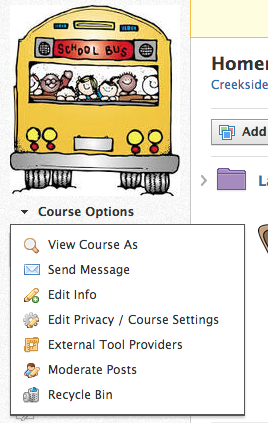
To do this click on course options under the picture for your course then click send message.  Follow the prompts to create the message.  This will send to all members, admins, members or parents.  This message will remain in an individual’s message section.  


  • Post an update to your course
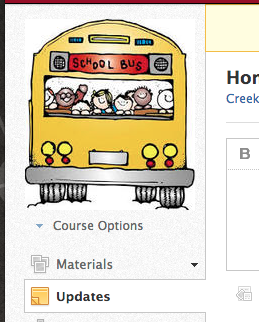
To do this click on updates on the left side of your Schoology course.  Follow the prompts to create an update.  This update will remain associated with your course and will be found when parents and students click on updates.  


  • Post in the calendar
To do this click on Add Event.  Follow the prompts to add an event to the calendar. This will show up in the calendar and the calendar feed area.  


For additional information on this topic, please consider this past blog post.  


We hope that this information will help you make the lines of communication clearer this school year.