Showing posts with label chrome. Show all posts

Tuesday, October 18, 2016

Tuesday Tech Tip: Get Going with Google!

Calling all Google Apps for Education fans! Coming back for their 5th Colorado event, the EdTechTeam Colorado Summit featuring Google for Education is happening in November! This two-day summit focuses on using and integrating Google Apps for Education in the classroom in order to promote student learning and innovation.


Here are the details:
WHO: Open to all! You, your teachers, your administrators! Make it a party!
WHEN: November 5-6, 2016
WHERE: Monarch High School
(329 Campus Dr, Louisville, CO)
WHAT: Learn, share, practice, grow. Each day will begin with a Keynote speaker, followed by 2 sessions, lunch, and then 2 more sessions. Day one ends with a Demo Slam and day two ends with a closing keynote.
HOW: Register HERE!

Here are some highlights from the schedule include using Google Apps for Education (GAFE) and other online tools to help students read and write in an online environment, the power of Google Forms, Using Social Media in the classroom and for building a PLN, Chrome Browser tips and tricks, Google Cardboard and virtual fieldtrips, differentiation, templates, Chrome extensions and add-ons, MakerSpace ideas, ways to use GAFE in all classroom content areas and grade levels, portfolios and publishing, badges and gamification, Breakout EDU, Google Classroom, the power of Google Slides and Drawings, Google Sites, Blogger, Google Photos, Pear Deck, formative and summative assessment ideas, interactive storytelling ideas, EdPuzzle, augmented reality and more! With the number of topics available, it'll be hard to choose just one session in each time spot! Just think though, the more teachers you bring the more you'll be able to take notes on and share with each other after the conference!

We would be happy to connect with you at the summit, just let us know you're planning to be there! Let's get as many people as we can to help represent the amazing work we're doing in CCSDD, and help our teachers grow and learn how to better integrate Google Apps for Education into their practice! We know there are already some pretty awesome things happening in the classroom, but it never hurts to have a few more instructional tools in your teacher toolbox to support your students in an ever-changing and evolving online world.

Again, here is the link to register for the summit. We look forward to hearing about your experience and sharing our learning with you! Happy Googling!

Thursday, December 17, 2015

Google Gifts: PDF Options in Google Drive

During the weekdays of December, we're sharing one tool per day.  We're calling it our Google Gifts series.  Some of these come directly from Google, and others are tools that enhance Google Apps or Chrome.  Today, we're sharing PDF options inside of Google Drive.

One of the most common file types in terms of web access is the PDF.  The benefit of the PDF is that it isn't easy to modify.  The downside of the PDF is that it isn't easy to modify. :-) However, if you have some PDFs that you want to use with students, you do have some options.  Be careful, though, as many PDFs are bound by copyright and can't be modified or shared.  Check the copyright before working with or sharing PDFs.

Why would I use it?  What does it do?
Depending on how the PDF was created, Google Drive provides some ways to work with PDFs.  Here are some ideas for using PDFs within Google Drive.
  1. Upload & store PDFs in GoogleDrive so you can share them.  Like any other file in Google Drive, you can use the "Share" icon or button to provide access to someone else.  This doesn't mean that the PDF is collaborative like native Google files, but they are accessible.
  2. Embed a PDF in a website or Learning Management System (LMS).  When you use the "pop-out" icon in Preview mode, you'll see the option to "embed."  This will give you the code you need to embed the PDF somewhere else.  If you've got a sharable article that you want students to refer to when responding to several questions, embedding the PDF can be a handy way to provide them with the text.  The directions below are about embedding into Schoology, but you can paste the code anywhere that accepts HMTL:
  3. Convert a PDF in Google Docs so that you can make changes.  There are software programs that may provide this functionality (like Adobe Acrobat Pro), but if you upload a PDF into Google Drive, you can choose "open with" and select Google Docs from the list.  It will extract the text for you and will also give you a picture of the original page(s) so that you can reformat, if necessary.  Caveat: depending on the complexity of the file, it may take quite a bit of editing.  This is especially true with mathematical formulas, images, and tables.
  4. Use a Chrome extension like Kami (formally known as Notable PDF) to annotate a PDF. If you want to highlight text, add sticky notes, and edit, you can use the free extension to work with a PDF. One of the coolest things about Kami is that you can collaborate with others on an article (and those annotating don't necessarily need a login to interact with the file). Not only can you open PDFs stored in Google Drive, but you can save them back to Google Drive.
  5. Use the "download as" option for Google files to save them as PDFs.  You can also use the print dialog inside of Chrome to save something as a PDF (and save to Google Drive).
Where can I learn more?
If you need information on Kami, you can check their website to learn more.  In addition, you can find more information about the extension in the Chrome webstore.  

Monday, December 14, 2015

Google Gifts: Grammarly

During the weekdays of December, we're sharing one tool per day.  We're calling it our Google Gifts series.  Some of these come directly from Google, and others are tools that enhance Google Apps or Chrome.  Today, we're sharing the gift of Grammarly.

Description:  What is it?

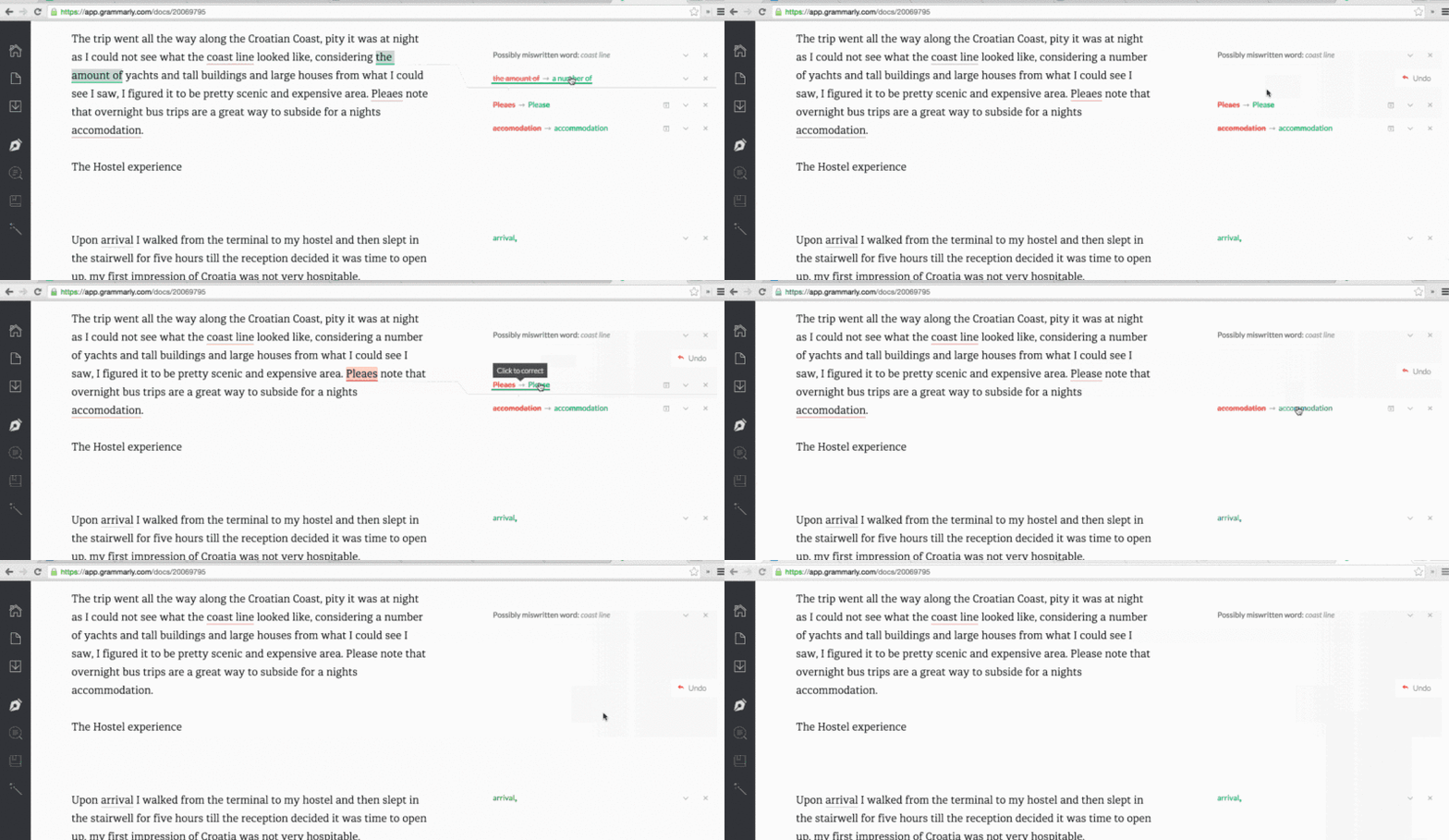
Grammarly is both a Google extension and a website.   You can add Grammarly from the Chrome Web Store.  Once added, you can use Grammarly to check your grammar and usage within any dialogue box, on any browser or Microsoft Office.  Grammarly works in emails, documents, social media posts and messages.  You can also create a Grammarly account, where you draft text within the site.  For me, the real power of this tool comes from its ability to check my grammar, spelling, and usage in my everyday online typing (e.g.: forms, dialogue boxes, emails).  Grammarly is free for use.  There is a paid version that checks for over 250 types of grammatical errors, provides vocabulary enhancements, detects plagiarism, and provides citation suggestions.
Why would I use it?  What does it do?

Grammarly, in no way, replaces good grammar instruction in the context of written assignments. Instead, it offers a great resource for students and professionals because of its instant feedback and accuracy.  Whether you are writing a dissertation, or an email to a colleague, Grammarly improves communication by helping users find and correct writing mistakes.

With so much communication happening digitally, both students and teachers need to be able to communicate effectively both inside and outside of the classroom.  Grammarly helps students do this efficiently and effectively. Teachers should always be promoting digital citizenship and responsibility. This includes using correct grammar and sentence structure when communicating with others. Grammarly is both a teacher and student tool.  Personally, I’ve been using it for all my online, digital writing.  In fact, I used the website  to compose this blog post (ISTE-T.4, "Promote and model digital citizenship and responsibility"; ISTE-S.2, "Communication and collaboration)

Student privacy is of utmost importance, so it is important to note that Grammarly is COPPA compliant, and does not collect personal information from anyone unless you set up an account. Students do not need to set up an account in order to begin using Grammarly.  Teachers can have the Grammarly extension available to students, and it is ready to use.  If you do create an account, Grammarly does collect your username, email address, and contact preferences.  

1*0qoJU1UuXWPRAw6Yp750hw.gif


Where can I learn more?


Wednesday, December 2, 2015

Google Gifts: Shortcuts for Google (Extension for Chrome)

During the weekdays of December, we're sharing one tool per day.  We're calling it our Google Gifts series.  Some of these come directly from Google, and others are tools that enhance Google Apps or Chrome.  Today, we're sharing the gift of an extension: Shortcuts for Google.   

What is it?
As an extension for Chrome, Shortcuts for Google is kind of like a gift stocking (it holds a lot of cool stuff and you can decide what goes inside).  Once installed, it provides quick access to favorite Google services as a pop-up window from the browser toolbar.  For example, yesterday we shared the gift of Google Images.  In the example below, notice that you can make a shortcut directly to Google Image Search (you can also add a shortcut to the LIFE photo archive).

Why would I use it?  What does it do?
As a productivity tool, this addresses ISTE Standard 6b for students ("Select and use applications effectively and productively").  For students, helping them add this extension could save instructional time, help them streamline a workflow, and help them be better organized with online shortcuts.  As a teacher, this can be a huge timesaver (especially if some of the services you use often aren't listed in the Google Apps "waffle").  

Some nice features with this extension include:
  • you can customize the extension to include the Google shortcuts you want (there are over 250 Google services available in the list);
  • if you are a Google Apps user, you can add your custom domain;
  • you can change the appearance of the extension and how it displays the icons & information;
  • you can add your own shortcuts, even for non-Google sites or services (like Schoology in the example above).
Where can I learn more?
There's information about the extension in the Chrome Web Store, but you can also visit the website from the creator, Carlos Jeurissen. And while you're there, check out some of the other "gifts" you can use in Chrome.  There are some other great extensions that help with productivity.

Tuesday, January 13, 2015

Tuesday Tech Tip: Exploring Apps & Websites with Graphite

In our office, we tend to get this question a lot:  "So, what apps should I use on <insert hardware here>?" That's a pretty complicated question.   What, ultimately, do you want students to learn by using the app(s)?  Are you trying to target specific standards or objectives?  How much time do you have (instuctionally) to dedicate to this activity, both before and during?  Does this need to be something web-based or will you be installing it onto a device?  How much money are you willing to spend?  
A great source of information when looking for classroom apps and websites is Graphite (http://www.graphite.org), from Common Sense Media.  Graphite is a website that provides reviews and ratings on apps, websites, and games.  It's searchable by grade level, content area, price, platform, and Common Core State Standard.  And the best thing about it? The reviews and ratings are done by educators for educators.   

When rated and reviewed on Graphite, teachers can get a quick snapshot about pros and cons, engagement, pedagogy, and support.  In addition, the detailed review explains what the app is or does, whether or not it's good for learning, and how teachers can use it (in addition to other helpful information like which skills it builds, what types of learners would benefit from using it, set-up times, and tech tips).  

Anyone can search or use Graphite without a user account, but when you create an account (free), there are additional benefits.  
  1. You can create "Boards," which are saved collections of reviewed apps and websites.  Boards are public, so you can create a board of your favorite reading apps to share with your PLC or colleagues.
  2. You can write your own field notes.  If you find an app or website that you've used with students, you can add your own comments to the existing review.  These can be very helpful, especially as your perspective may or may not align with the reviewer's take on the app.
  3. You can also create "App Flows," which are basically lesson plans that you share on the site.  App Flows take you beyond the basics of a single app into a practical way to use the app in a lesson or unit.
  4. You can follow other educators who review things that you find helpful or interesting.
In Cherry Creek, we've had quite a few teachers contribute content to Graphite.  In fact, some of them are now Graphite Certified Educators!  If you're interested in becoming a Certified Educator for Graphite, you can find more information on their website.  

Graphite is constantly adding more reviews to their site, and while you can get ratings in the iTunes store for iOS apps, the Chrome Web Store for Chrome apps, or Google Play for Education for Android apps, they are nowhere near as detailed or helpful as the information you can find on Graphite.  Graphite keeps reviews for all platforms in one place and keeps the focus on learning.

Thursday, December 18, 2014

Twelve Tools of December: Desmos


During the weekdays of December, we're sharing one tool per day as part of our Twelve Tools of December series.  Some of these tools are designed to be used instructionally, some can help you be more productive, and some are just fun.

Today, we're sharing about Desmos. 


What is it?
Desmos a fabulous FREE graphing calculator that can instantly plot any equation entered. It's considered the next generation graphing calculator. You can find it in the Chrome App Store and in the iTunes store for use on iPhones and iPads.  Once you get there, you can explore and then create an account or link it to your google account.  

Why would I use it?  What does it do?
Do you or your students graph functions, plot tables of data, evaluate equations, or explore transformations?  If you answered yes, then this is the tool to use.  The website has a wealth of math examples as well as creative arts applications.  Need some inspiration and lesson ideas?  Click here for an entire site dedicated to hand crafted classroom activities made by teachers.  

Here are some sweet examples from the site.  Click on the name of the graph to see Desmos in action.  


Sun to Moon


And if this was not enough, this tool has been reviewed on Graphite too.  


Where can I learn more?
Desmos has YouTube channel where you can learn from their experts and view how-to videos. Additionally, there is a handy blog where you can keep up on the latest.  Do you tweet?  Consider following them @Desmos

Whether you consider yourself a math wiz or a novice you likely will be enthralled with what Desmos can do!  

Twelve Tools of December: Bridges Math Tools from Math Learning Center


During the weekdays of December, we're sharing one tool per day as part of our Twelve Tools of December series.  Some of these tools are designed to be used instructionally, some can help you be more productive, and some are just fun.

Today, we're sharing about Bridges Math Apps from the Math Learning Center. 


What is it? 
These are actually 8 different apps which are available for IOS devices and web apps for use in a browser such as Chrome. 
These apps are connected to Bridges in Mathematics K-5 and are based on the visual models used to support student learning.  
The 8 apps are:  Pattern Shapes, Number Frames, Math Vocabulary Cards, Geoboard, Number Line, Number Pieces, Number Pieces Basic, and Number Rack.


Why would I use it?  
They are FREE--yep, no money needed!  With the adoption of Bridges Math coming to elementary schools soon, we thought that you would like to explore these tools now.  They are available through this link.  Additionally, students can find the apps when they click on the app launcher in the Chrome browser.  Why not get out some Chromebooks and have students explore?  Ask them their opinion about the tool(s)?  After students have the opportunity to out the apps, consider creating an assignment in Schoology where they need to use a specific tool to to represent their learning.  Teach students how to take a screen shot of their work and send it to you.  

You might also consider going to the Illustrative Mathematics site to find a task for your students to complete using the Bridges Math Apps!  


Are there similar tools?
Another site to find online math tools is the National Library of Virtual Manipulatives.  While more extensive than the Bridges Apps, they are a little dated and now have a free as well as a paid version.  

Where can I learn more?
Check out this YouTube video to see how to integrate these apps into Google Classroom!  


Go ahead….check them out…you will be glad that you did!  


Tuesday, December 16, 2014

Twelve Tools of December: Auto Text Expander

During the weekdays of December, we're sharing one tool per day as part of our Twelve Tools of December series.  Some of these tools are designed to be used instructionally, some can help you be more productive, and some are just fun.

Today, we're sharing about Auto Text Expander.. 

What is it?
Auto Text Expander is a free Chrome extension that allows the user to create text shortcuts that the extension will finish for you. 

Why would I use it?  What does it do?
This extension can be used with younger students who have a hard time typing @cherrycreekschools.org over and over. It can be pushed out in the Google admin panel, and then with very minor set up it is ready to go. Also, it is a great tool for teachers if you find yourself typing the same thing over and over again in emails or on papers. When the (txt) icon is in your browser bar, that means the extension can be used on the website that is open. 

Are there similar tools? (optional)
Other extensions in the Chrome store are Popchrom and ProKeys. While they have similar functions, Auto Text Expander seems to work better with most shortcuts. Another set of alternative tools for all platforms can be found here. 

Where can I learn more?
Check out Auto Text Expander in the Chrome Web Store and start saving time!
sample list of shortcuts

Monday, December 15, 2014

The Twelve Tools of December: Chrome Remote Desktop

During the weekdays of December, we're sharing one tool per day as part of our Twelve Tools of December series.  Some of these tools are designed to be used instructionally, some can help you be more productive, and some are just fun.

Today, we're sharing about Chrome Remote Desktop.


What is it?

"Chrome Remote Desktop allows users to remotely access another computer through Chrome browser or a Chromebook. Computers can be made available on an short-term basis for scenarios such as ad hoc remote support, or on a more long-term basis for remote access to your applications and files" (taken from the app description on the Chrome Web Store).  This is  a free app and can be installed on Android devices as well.  The best thing is that the computer being controlled just needs to be powered on.  Chrome does not need to be running to use the app on the host computer.

Why would I use it?  What does it do?

After installing the communication access piece on your laptop(s) and/or desktop(s) and setting your own private code, you can enable that computer to be accessed remotely.  So, if you have a computer at home that you need to access and control from work (or vice versa), you can launch the Chrome Remote Desktop app and connect to it.  (Personally, I have used this when my kids are at home and need to me enter the computer password for them to play a game.)  This is also helpful if you're on a Chromebook or mobile device and need to access a software program that's installed on a PC or Mac in another location; you can use Chrome Remote Desktop to work on that other machine and access what you need.

Or, if you are doing a presentation and would like to be mobile and walk around the room, you can leave your computer hooked up to the projector and simply use another device to control it remotely.  (While you can use a Chromebook to control other computers, you can't yet control a Chromebook from another device.)  I often use a Chromebook to control my laptop when presenting so that I'm not stuck in front of my laptop during a workshop.

Another way to use Chrome Remote Desktop is for technology support ("Remote Assistance").  This can be very helpful when you're either trying to help someone solve a problem over the phone (or trying to have someone help you remotely).  Screen sharing is started within the app, and it generates a code that is used by the person needing to screen share.  Once the session ends, that "helper" no longer has access to the machine (unless another sharing code is created in a new session).  

Are there similar tools? 

There are software programs available that let you do something similar, like VNC, but they require installation (so they won't work from a Chromebook) can be a bit cumbersome to use.  Other services like LogMeIn.com and GoToMyPC.com have free trials but require a paid account.

Where can I learn more?

Google has a Chrome Remote Desktop help site with set-up information and basic steps for use.  In addition, there is a Google user group where you can post questions and get responses from other smart folks who use Chrome Remote Desktop.

Friday, December 12, 2014

The Twelve Tools of December: Screencastify

During the weekdays of December, we're sharing one tool per day as part of our Twelve Tools of December series.  Some of these tools are designed to be used instructionally, some can help you be more productive, and some are just fun.

Today, we're sharing about Screencastify.  


What is it?
Screencastify is an extension in Chrome that allows you to create screen video recordings. With Screencastify, you can create and share video tutorials of your screen or create presentations. As long as you have the Chrome browser, you have the ability to create screencasts using Screencastify. There is no cost to use Screencastify Lite, and you are able to record up to 10 minutes of video.

Why would I use it?  What does it do?
Screencasts are video recordings of your computer screen that have an audio recording in them. They can be very useful for showing someone how to do something on the computer, as in a tutorial or presentation. The viewer can see what to do and where to click on the screen, and hear audio of what’s being said while you click around. It’s a great way for teachers to show parents, students or colleagues how to do something online. It can also be a great way for students to describe and share their thinking while they’re working online. You even have the option to embed a video of yourself in the bottom of the video that you record. 

Screencastify doesn’t collect personal information, and at this time doesn’t have anything specific in their Privacy Policy that addresses under 13.

Are there similar tools?
Snagit is another tool that you can use for screencasting. It is a Chrome web app and an extension in Chrome. It allows you to take screenshots (images) of your screen, or screencasts (video). If you purchase the paid version of Snagit, you can use it on Mac and PC platforms in addition to the Chrome browser. Check out tutorials for Snagit and their privacy policies for students under 13. 

Kathy Schrock also has a great site dedicated to Screencasting in the Classroom. You can check out screencasting tools for different devices, as well as classroom samples.

Where can I learn more?
Here's one screencast tutorial found from a site that compares Screencastify and Snagit.

Wednesday, December 10, 2014

The Twelve Tools of December: AdBlock Plus

During the weekdays of December, we're sharing one tool per day as part of our Twelve Tools of December series.  Some of these tools are designed to be used instructionally, some can help you be more productive, and some are just fun.

Today, we're sharing about Adblock Plus.  


What is it?
Adblock Plus is a free extension you can add to any web browser to block out annoying pop-ups, advertisements and banners. With over 300 million downloads, Adblock Plus is one of the most popular browser extensions out there. You can download it for free here: https://adblockplus.org/


Why would I use it?  What does it do?
You know those really annoying (and sometimes inappropriate) ads you see when you launch YouTube videos?  And those annoying pop-ups, banners and ads that slow you down when you’re trying to use the Internet? Adblock Plus blocks out all ads on websites and YouTube videos, unless it feels that the ad is non-intrusive advertising. If you want to lock out even those ads, you can adjust your settings to do so. This is great for student machines and also for teacher machines when projecting videos and websites to students. Also, Adblock Plus does not collect any of your personal data, so you can feel safe when using it.

Are there similar tools? 
There are some very similar tools out there. like Adblock and uBlock. After reading some articles and trying both Adblock and Adblock Plus, I personally chose Adblock Plus as my ad blocker of choice. Here are a few articles about the differences between these extensions that might be worth reading so you can decide which one will be best for you: http://readwrite.com/2014/08/01/adblock-plus-switch-adblock, http://lifehacker.com/ublock-is-a-fast-and-lightweight-alternative-to-adblock-1625246461, http://jackworld.xyz/adblock-vs-adblock-plus/

Tuesday, December 9, 2014

The Twelve Tools of December: One Tab

During the weekdays of December, we're sharing one tool per day as part of our Twelve Tools of December series.  Some of these tools are designed to be used instructionally, some can help you be more productive, and some are just fun.

Today, we're sharing information about One Tab


What is it?
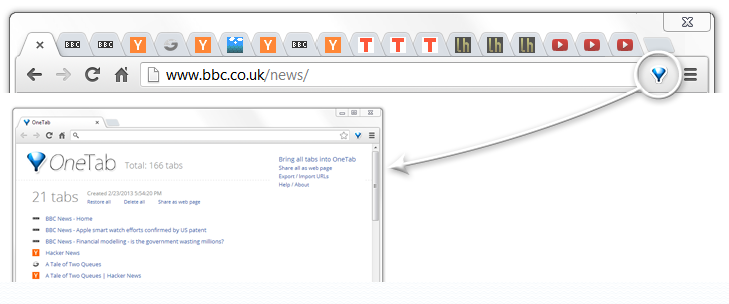
Does your browser ever get cluttered with all the tabs you have open?  If so, One Tab was made for you!  One Tab is an extension that allows you to save all of your tabs you have open in Chrome or Firefox by saving a list of URLs.  You can restore an entire list or open a specific tab.  Click here to get the Chrome extension.


Why would I use it?  What does it do?
One Tab is a great tool for teachers and students. You are able to quickly save all of your webpages in an organized list.  This is a great tool for researching or multitasking. You can also share your tabs so others can have access on any device. If students are collaborating together, they can easily share their resources with their group.  


Sunday, August 17, 2014

Tuesday Tech Tip: Digital Classroom Tools (Schoology, Google Classroom, and gScholar)

Cherry Creek Schools provides many digital tools for the classroom teacher.  Yet, it can sometimes be confusing to figure out which one to use and why.  With the recent release of Google Classroom, our beta testing of gScholar, and our implementation of Schoology, teachers will undoubtedly have questions about what options are available and how these tools support learning.  All three have their place, so let's take a look at how each would best fit into the CCSD classroom.

We are extremely fortunate to have Schoology (COLE 3.0) as our comprehensive Learning Management System or LMS.  For most of our digital learning needs, Schoology more than fits the bill.  As a CCSD teacher, Schoology is your best option for:
  • Organizing your digital classroom (differentiation, customization, and pacing)
  • Posting class-wide announcements or updates
  • Using online discussion boards
  • Posting links, files, images/video, and pages for units and lessons (including audio support)
  • Communicating with parents
  • Giving online tests/quizzes
  • Embedding interactive learning activities
  • Assessing both digital and non-digital student work (including alignment to standards)
  • Creating digital assignments (work or files can be submitted by students or done off-line)
  • Tracking student mastery with specific standards and learning outcomes
  • Collaborating and sharing with other teachers on lessons, assessments, and class resources
Because Schoology syncs with PowerSchool, all classes are built automatically and students are added and removed automatically.  


Google Classroom was released to K-12 Google Apps domains during the week of August 11th. A good supplement to an existing LMS like Schoology, Classroom helps teachers share and organize Google Drive files with classes or groups of students.  (While students can turn in assignments in Classroom, submitting student work in Schoology has many more options for feedback and assessment.)  As a CCSD teacher, Classroom is your best option for:
  • sending a Google Doc to students for individual editing (like sending out a Thinking Map or another template for students to edit individually which is automatically shared with you)
  • sharing a Google file (presentation, spreadsheet, document or drawing) that you want all students to collaborate on as a group 
Because Google Classroom isn't syncing courses or class rosters, teachers need to create their own classes and manually manage student enrollment and enrollment changes (students can join with a course code or be invited via email).


gScholar is a tool we've been beta testing to help with classroom management when using Chrome and Chromebooks with students.  (gScholar also has a GoogleDrive management aspect, but with the release of Classroom, it will soon be integrating its services with Google Classroom.)  As a CCSD teacher, gScholar is your best option for:
  • sending messages to students using Chromebooks or Chrome
  • "pushing" a website to all students using Chromebooks or Chrome
  • viewing tabs open on devices using Chromebooks and Chrome (and closing tabs remotely, if necessary)
  • taking screen shots of a student Chrome tab (helpful if you want to gather individual student progress on an interactive web site or capture what a student is doing in Chrome or on a Chromebook)
Because gScholar isn't syncing user roles, courses or class rosters, teachers need to have a teacher account created for them (typically by a technology coordinator or other support personnel) and will need to create their own classes and manually manage student enrollment (teachers can add and delete students from their class rosters).

Ultimately, it's up to teachers to decide how and when to utilize these instructional tools in the classroom.  Want to know more about any of these?  Please contact the Office of Instructional Technology -- we'd be happy to work with you!

Tuesday, February 25, 2014

Tuesday Tech Tip: Flashcards with the Quizlet Chrome App

Flashcards are often used to help solidify concepts for deeper learning.  While not appropriate for all types of learning needs, many teachers & students use flashcards as part of distributed practice.  Today's tech tip is about a free digital flashcard tool: Quizlet (available via web browsers and via apps for Chrome, iOS, Android, Kindle Fire, Nook, and Windows phones).  This post explores the web or Chrome app version.

While you don't need an account to use existing flashcard sets on Quizlet, students and teachers can sign up using their CCSD GoogleApps logins if they will be creating sets.  

There are 6 study modes for sets.  Not only can you study using the flashcard mode, but you can also have it generate practice for you, test your spelling, create assessments and games.  Immediate feedback is built into the modes.

Quizlet also has image, audio, and multiple language support.  When creating flashcard sets, you can include images in the definition that match your term (it has a built-in image search tool or you can upgrade your account and upload your own images).  You can also choose different language options (useful for world language teachers).  Finally, when clicking on terms or definitions, Quizlet will read the terms or definitions out loud for you (try it out in the embedded example below).

Speaking of embedding, Quizlet provides embed code so that you can put sets into other sites (like Schoology or blogs).  That way, students can use sets without having to log in or search Quizlet's site.  A pull-down menu in the lower corner lets you choose between study modes if the set has been embedded (the example below is for the 5th Grade FOSS unit for Mixtures and Solutions).


When creating card sets, you can also combine with other sets, create folders, invite others to edit, or make them private. As a teacher, you can also create a class for internal collaboration.

If you or your students would like to use flashcards on any device for free, Quizlet is worth a look.