Wednesday, December 10, 2014

The Twelve Tools of December: AdBlock Plus

During the weekdays of December, we're sharing one tool per day as part of our Twelve Tools of December series.  Some of these tools are designed to be used instructionally, some can help you be more productive, and some are just fun.

Today, we're sharing about Adblock Plus.  


What is it?
Adblock Plus is a free extension you can add to any web browser to block out annoying pop-ups, advertisements and banners. With over 300 million downloads, Adblock Plus is one of the most popular browser extensions out there. You can download it for free here: https://adblockplus.org/


Why would I use it?  What does it do?
You know those really annoying (and sometimes inappropriate) ads you see when you launch YouTube videos?  And those annoying pop-ups, banners and ads that slow you down when you’re trying to use the Internet? Adblock Plus blocks out all ads on websites and YouTube videos, unless it feels that the ad is non-intrusive advertising. If you want to lock out even those ads, you can adjust your settings to do so. This is great for student machines and also for teacher machines when projecting videos and websites to students. Also, Adblock Plus does not collect any of your personal data, so you can feel safe when using it.

Are there similar tools? 
There are some very similar tools out there. like Adblock and uBlock. After reading some articles and trying both Adblock and Adblock Plus, I personally chose Adblock Plus as my ad blocker of choice. Here are a few articles about the differences between these extensions that might be worth reading so you can decide which one will be best for you: http://readwrite.com/2014/08/01/adblock-plus-switch-adblockhttp://lifehacker.com/ublock-is-a-fast-and-lightweight-alternative-to-adblock-1625246461http://jackworld.xyz/adblock-vs-adblock-plus/

Tuesday, December 9, 2014

The Twelve Tools of December: One Tab

During the weekdays of December, we're sharing one tool per day as part of our Twelve Tools of December series.  Some of these tools are designed to be used instructionally, some can help you be more productive, and some are just fun.

Today, we're sharing information about One Tab


What is it?
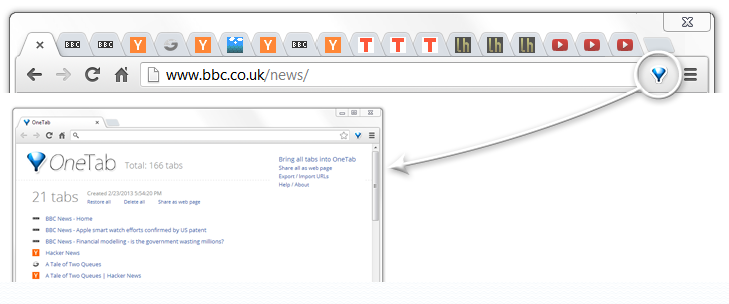
Does your browser ever get cluttered with all the tabs you have open?  If so, One Tab was made for you!  One Tab is an extension that allows you to save all of your tabs you have open in Chrome or Firefox by saving a list of URLs.  You can restore an entire list or open a specific tab.  Click here to get the Chrome extension.


Why would I use it?  What does it do?
One Tab is a great tool for teachers and students. You are able to quickly save all of your webpages in an organized list.  This is a great tool for researching or multitasking. You can also share your tabs so others can have access on any device. If students are collaborating together, they can easily share their resources with their group.  


Monday, December 8, 2014

The Twelve Tools of December: Notable PDF Extension

During the weekdays of December, we're sharing one tool per day as part of our Twelve Tools of December series.  Some of these tools are designed to be used instructionally, some can help you be more productive, and some are just fun.

Today, we're sharing about Notable PDF.

What is it?


Notable PDF is both a Chrome web app and an extension for Chrome that allows you to view, mark up, and save PDFs.  With Notable, you can add text, highlights, comments, etc.  If you have PDFs stored in GoogleDrive, you can open them in Notable to annotate them.  If you have PDFs stored on your local computer, you can drag the file into the Notable window to begin marking it up (and you can then export it to GoogleDrive, if you wish).  You can also collaborate with others by uploading your file to Notable (it will give you a link and embed code).   The web app takes you to the web service for uploading and viewing files, and the extension detects PDFs you view in your browser and lets you annotate without having to download the PDF.

Why would I use it?  What does it do?

If you have files in PDF that you'd like to annotate digitally yourself or have an article you'd like your students to annotate, this is a great solution.  Having students (or peers) interact with text helps support a deeper dive into material, and there is some recent research that indicates that students can be good online readers if they are taught good digital annotation skills that encourage analysis and reflection.  

Are there similar tools? 

Many students and teachers in our district are using Scrible to annotate web-based text, but Scrible won't work with PDFs (at least not yet).  Apps exist for iOS and Android, but if you're looking for a browser-based solution, Notable PDF is probably your best bet.  Other Chrome apps or extensions like PDFZen or Diigo exist, but they don't perform nearly as well or as reliably as Notable PDF (or require a separate account).  

Where can I learn more?

Notable has a help area with tutorials and helpful articles on using the tool. While fairly intuitive to use, the articles are helpful when using some of the more advanced features like collaboration and exporting.

Friday, December 5, 2014

The Twelve Tools of December: Realtime Board

During the weekdays of December, we're sharing one tool per day as part of our Twelve Tools of December series.  Some of these tools are designed to be used instructionally, some can help you be more productive, and some are just fun.

Today, we're sharing about Realtime Board.  

What is it?
Realtime Board is an interactive, collaborative, online whiteboard. Similar to a regular whiteboard, it allows you to write, erase, and add more writing. The benefit of having it online means that anyone can not only write on the infinite space whiteboard, they can also add links, images, comments, documents or notes and save it all for later. You'll never run out of space, and you won't have to erase (hey, that rhymes!) and lose everything! 

Using Realtime Board
Realtime Board (free or paid versions) would be great for use with students to help collaborate on notes, brainstorm ideas, work on thinking maps, and share resources. Realtime allows you to add content from your computer, your Google Drive, or search the built in library of icons and images in real time (ha ha, get it?) for collaborators to see immediately and review, or to view later. Realtime Boards can also be embedded into Schoology, or anywhere else that accepts embed codes, for students to refer back to later if need be or view from home if they missed your really awesome discussion in class. 

Similar Tools for mobile devices
Although the promise of "coming soon" mobile device apps from Realtime Board is exciting, for those teachers using tablets in the classroom who need-this-in-their-classroom-right-now-OMG, there are some alternatives. Syncspace is available for download (paid and free versions) on iTunes and in the Google Play Store. It is also a collaborative work space, but doesn't have the same features and functions as Realtime Board. Other alternatives to explore: WhiteboardMeEducreations, Whiteboard. Also, check out the list Graphite.org put together, "Top Interactive Whiteboard Apps".

Where can I learn more?
Realtime Board has several examples and tutorials about creating and collaborating on a board. Check it out here!


If you know of other similar tools, leave a comment about it below!

Thursday, December 4, 2014

The Twelve Tools of December: Socrative

During the weekdays of December, we're sharing one tool per day as part of our Twelve Tools of December series.  Some of these tools are designed to be used instructionally, some can help you be more productive, and some are just fun.

Today, we're sharing about Socrative.  
What is it?

Educational web 2.0 tools tend to come and go over time.  The tools that stick around are useful and get better as time goes by.  Socrative is one of the good tools.  It has been around since 2011 and keeps getting better over time.

Socrative is a free website/app that works on all devices and all platforms.  Chrome, Android, and iOS apps are also available for Socrative.  Real time formative assessment via Socrative allows teachers to more effectively gauge student understanding and differentiate/individualize instruction whenever possible.   


Why would I use it?  What does it do?

In their own words, Socrative "saves teachers time so the class can further collaborate, discuss, extend, and grow as a community of learners."  It's a powerful, real time learning response tool.  Through various question structures (multiple choice, true/false, and short answer) Socrative becomes an engaging tool for both teachers and students.  Results from responses can easily be exported and shared in Excel as well.  

Concerning terms of service, students either need to be at least 13 years old or have their parent/guardian's and/or teacher's consent to use the tool.  

Are there similar tools?

There are similar tools, but none come close to the functionality and ease of use of Socrative, which explains why the company was acquired by MasteryConnect in 2014.

Where can I learn more?

Socrative creates their own video tutorials and posts them on YouTube here.  Many users create their own tutorials and post them on YouTube as well.

Find out what educators think of Socrative via Graphite.org here.

Socrative is also on Twitter, Pinterest, and Facebook.  Be sure to stay connected to their social media outlets for the latest features and functionality.

Wednesday, December 3, 2014

The Posts of Tech Tips Past: These Are a Few (or 12) of Our Favorite Things

Starting this week, we'll be posting daily tips and tools related to technology & learning. But, before we get to our Twelve Tools of December, we wanted to make sure we revisited some "posts of tech tips past."

In case you missed them, here are some excerpts about tools that we've previously shared (click "READ MORE" to view the entire post).


1. Reading (and Annotating) Library Books in Your Browser (OverDrive). If you have a library card, you have access to books that you can read in your browser. In our district, most of our 60 schools have access to our district's OverDrive catalog, and any staff member in CCSD has access through our District Library & Media Services department. READ MORE . . .


2. Reading (and Annotating) Web Pages in Your Browser (Scrible). Our last Tuesday tech tip was about reading & annotating library books in your browser, and this week's tip is about reading & annotating web pages in your browser. Since we're using Chromebooks, we'll be focusing on the Chrome extension for Scrible (a free tool currently in beta). READ MORE . . .

3. Using the Readability Extension for Cleaner Web Reading. As we engage our students (and ourselves) with more and more online text, having an interface without ads, pop-ups, comments, and other distractions is becoming increasingly important. There's a ton of great stuff out there, but focusing on the text itself can be a challenge. One option for getting an uncluttered version of a website is the Readability Chrome extension. READ MORE . . .

4. Being Smarter with YouTube: Turn Off the Lights. Many teachers & educators like to use YouTube and other video clips to support learning and instructional goals, but one of the downsides to showing a clip for an audience (via projector) is that sometimes you get content that you didn't necessarily want to display (especially if you're working with a class full of kids). READ MORE . . .
5. Flashcards with the Quizlet Chrome App. Flashcards are often used to help solidify concepts for deeper learning. While not appropriate for all types of learning needs, many teachers & students use flashcards as part of distributed practice. Today's tech tip is about a free digital flashcard tool: +Quizlet. READ MORE . . .

6. Using Symbaloo to Collect & Share Resources. +SymbalooEDU is a free personal startpage that allows you to easily navigate the web and compile your favorite sites all in to one visual interface. It allows you to save and share your bookmarks in the cloud and access them from anywhere with any device. READ MORE . . .


7. Using Voice Search in Chrome. Most computers and all current mobile devices today have built-in microphones, and one of the things you can leverage in Chome
is voice search and actions. Giving students the option to speak into the computer for searching or other activities (and hear a verbal response) could add a new dimension for learning, especially for students with accommodations . . . READ MORE . . .

8. Using Chrome to Read Out Loud. We posted previously on

how to speak into Chrome for searching, but many of our students also benefit from hearing text read out loud while reading. So, this week's tech tip is about using Chrome extensions to read web pages and other text aloud within the browser. READ MORE . . .


9. Using NearPod in the Classroom. Many teachers use a digital presentation in their classroom to help them keep students engaged, to keep themselves on track, and to incorporate technology into their instruction. +Nearpod is a presentation tool that allows teachers to create a presentation and bring it to life by pushing it out to students and guiding their activity in real time. READ MORE . . .

10. MoveNote in the Classroom. Check out this versatile and effective tool for video presentations. Teachers and students can create their own Movenote videos as a way to share, present and reflect. Watch the video below to see what Movenote does and brainstorm possible ways +Movenote can support teaching and learning. The possibilities seem endless! READ MORE . . .


11. Video Editing with WeVideo. Some of my first experiences with using technology in my classroom were based around video production. It was a great way to have my students record and share
media in exciting and innovative ways. At that time, your options were to use the video editing software that was available for the platform you were using. (ie-iMovie for Macs and MovieMaker for PCs) Now that we have Chromebooks, having an all purpose video editing tool that kids can use anywhere, anytime is essential, and that’s where +WeVideo comes in!

12+. Schoology. In addition to the tools mentioned above, we've posted quite a bit about +Schoology, our Learning Management System or LMS. From everything like discussion boards to online assessments to media albums, Schoology has a ton of features for the digital learning space. Obviously, the posts won't all fit here, but if you'd like a quick perusal of posts just about Schoology, you can view them here.

Be on the lookout this week (and for the rest of December) as we share more things you can use in the classroom!

Tuesday, December 2, 2014

Tuesday Tech Tip: 12 (+1) Holiday Gift Ideas for Techies

We're now into the gift-giving season, so we thought we'd post some techie gift ideas for the holidays.   Some of these might make great gifts for you (and you can use this blog to drop a hint); others might be the perfect idea for someone else.  While we are not endorsing Amazon as the place to purchase any of these, we do provide some links so that you can get more information (including user reviews). Here's 12 (+1) gift ideas for the techie (in no particular order).

+1. Public library card (free!).  Okay, I know -- this is one you should give yourself if you don't already have one.  But if you have kids and they don't have a library card, it really is the gift that keeps on giving (and it's FREE!).  You can check out audio books, ebooks, and even music and movies in electronic formats, in addition to using their hard copy resources at the library branches.  Thanks to the Colorado Libraries Collaborate! program, any CO resident can get a library card at any public library, regardless of his/her address.  Check any library's website to see how to obtain a card.

1.  Portable Chargers (typically under $25).   If you're traveling or just need an option when you're not around an outlet to charge a device, there are some great portable chargers on the market (many under $25). Basically, these provide a portable way to charge USB devices (tablets, cell phones, eReaders, etc.), and some can charge multiple devices simultaneously.  Great for emergencies or times when you just run out of juice.

2.  Stylus pens (~$2.00 - $10.00, depending on quantity).  While there are increasing numbers of tablet devices, many of them do not come with a stylus to write on the device (our colleague +Nanci Meza-CCSD calls these Sty-pens).  You can use the on-screen keyboard for writing, but quite a few people still prefer the act of writing (or doodling) by hand.  You can pick up packs of these on the cheap, and most of them work both with paper and with tablets.  

3.  USB Flash Drives or Memory Cards (price varies).  The cloud is great (we use it all of the time), but sometimes you still need a USB drive or an SD card for physical storage.  And the amount of storage you can now get is crazy (you can actually buy 1TB flash drives now, but they aren't cheap).  With the holiday deals available now, you can get a really good 64 GB flash drives or memory cards under $20.   

4.  Chromecast ($35.00).  There are quite a few options for wirelessly streaming content these days, but Chromecast is inexpensive, works with Chrome browsers, iOS, and Android, and is very easy to set up.  You do need a TV or projector with HDMI (you can get a VGA-HDMI adapter if you don't have HDMI), but you can stream (or "cast") content from a mobile device or Chrome browser to your TV or projector.  Chromecast can either get power from a USB port in your TV or projector or you can use the power adapter in the box to plug into an outlet.

5.  Bluetooth Audio (~$15.00 - $500).  Wireless or bluetooth audio accessories are another gift idea that comes in a range of prices (from affordable to laughable).  Bluetooth speakers range from small portable units to larger room solutions, and these can be a great gift -- they even have indoor/outdoor versions that can be great for backyards or family rooms.  Bluetooth headsets or headphones are another idea and can be an especially good gift for those who like to workout with audio players and don't want the hassle of cords.

6Tablets ($99 - $500).  Lots of choices are out there for tablets now, and while they can still run on the expensive side (depending on model and screen size), you can get the Amazon Fire for just under $100 (7 inch), the Samsung Galaxy Tab 4 for just under $200 (8 inch), or the iPad Mini for $249 (7.9 inch).  Larger screen sizes will be pricier, with Android OS devices being less expensive than iOS models.

7.  Protective Cases (price varies).  Perhaps not as thrilling as the devices they protect, cases are a  must-have, especially if you are thinking about gifts for kids.  These also range in price, depending on what's being protected and how, but if you getting a tablet (or even a phone), you probably want to figure in the cost for a good case.  (We have to give a shout-out to Otterbox, a local company who makes great cases and also is very supportive of education and educators.)  For those who need a keyboard for a mobile device, you can also buy cases with keyboards built-in.

8.  Mobile Device Mounts ($20 - $50).  Another accessory for mobile devices, a stand or mount that is free-standing or can be attached to a cabinet, desk/table, or tripod can be really handy.  Kitchen cabinet mounts keep a device at eye level for recipe perusing, desk/table mounts with flexible legs can turn mobile devices into document cameras, and tripod mounts attach any mobile device to a tripod for stationary/stable recording.

9.  Wearable Technology (price varies).  Wearable technology will get more popular as prices come down and more devices are developed, but for now, the most common (and most affordable) wearable technology is related to fitness.  However, you'll find everything from watches to wearable cameras (like the GoPro) to glasses if you look around (Amazon now has a section on their site devoted to wearable tech).  They even have wearable technology for pets -- and babies.

10.  Mini Projectors ($50 - $500).  Another technology that will likely become more available, more affordable, and more impressive is the mini projector.  The quality currently is about what you'd expect (not awesome but decent for smaller rooms with little light polution), but this could be a fun solution for a kids' room or for outdoor use.  Some run off of USB power, which could also be a good road trip or travel option.

11.  3D Drawing Pens ($80 - $180). This gift idea comes from  +Jon Pierce, our Elementary STEM and Innovation Coordinator (thanks, Jon!)   In the same way that wearable technology is gaining momentum, items that help create 3D objects are also on the rise. There are several vendors who make these, but basically, these are pens you fill with print filament (different colors are available) that allow you to doodle a 3D object.  If you run out of fillament, you can buy replacement packs.

12.  Laptops (price varies).  Yep.  Had to include this one.  Laptops obviously range in price, but Chromebooks can be a good option.  Consumer Reports rated Asus & Toshiba the highest in terms of quality, but the Samsungs (like what we have) weren't far behind.  Most district employees or educators can find education discounts from Apple and Dell (or Microsoft).  One of our school technology coordinators, +Nate Krulish, posted on his blog today: What Laptop Should I Buy? -- it's a great list of ideas (and it's a good idea to find out what technology is already available at a school if you're purchasing a gift for a kid).

So, there are our 12 (+1) ideas for techie gifts for 2014.  Happy giving (and receiving)!